Helppier has the ability to perform user actions that allow navigating through different pages (click), for example.
Each step created needs to have an action associated. By default, the action applied is the walkthrough step.
Helppier has different types of actions. Learn in this article the best way to use all options. You can select which action the tutorial will perform in each step.
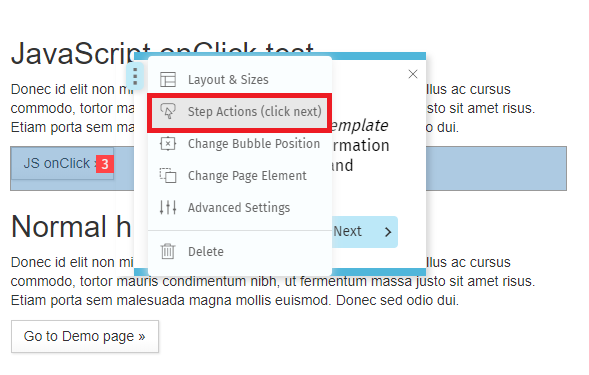
1. To manage actions, click in the option "Step Actions" located at the bubble's menu when recording a guide.
2. A sidebar will appear. There you can choose from different types of actions.
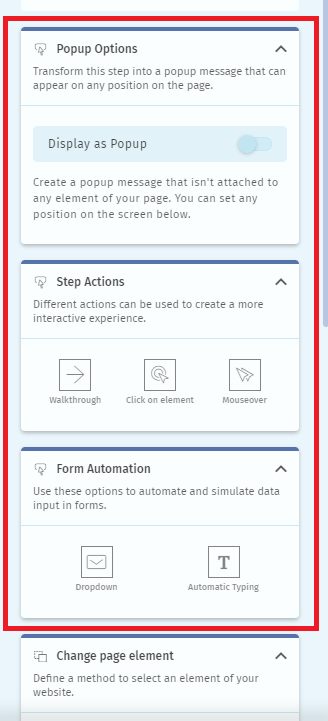
Popup
Used to show a quick message to the user in the center of the screen. You can welcome new users or provide general information about your business. Make sure to insert media and links for more engagement.
Walkthrough
This is our default action. Use it to create a tour across your website and provide info about different page elements.
Click
Helppier simulates a click on the element (button or link) and redirects users to another page or area of your site. The guide will continue to run there. Use this option on a link or button on your page.
Mouseover
Identify a mouseover element. Helppier can recognize elements that are not always visible and attach steps.
Dropdown
Helppier automatically selects a specific option inside a dropdown menu. This way, the end-user doesn't need to take any action.
Automatic Typing
Simplify form filling and simulate answers. Add a description and it will automatically be presented on a selected text field.
Comments
0 comments
Please sign in to leave a comment.