In this article, we explain how to create a simple popup message for your website using Helppier.
Creating a Popup message 💌
1 - After setting up your app/domain and adding Helppier to your website you need to create a guide;
2 - Click on Helppier's widget, click on "New Guide" and select an element of your page;
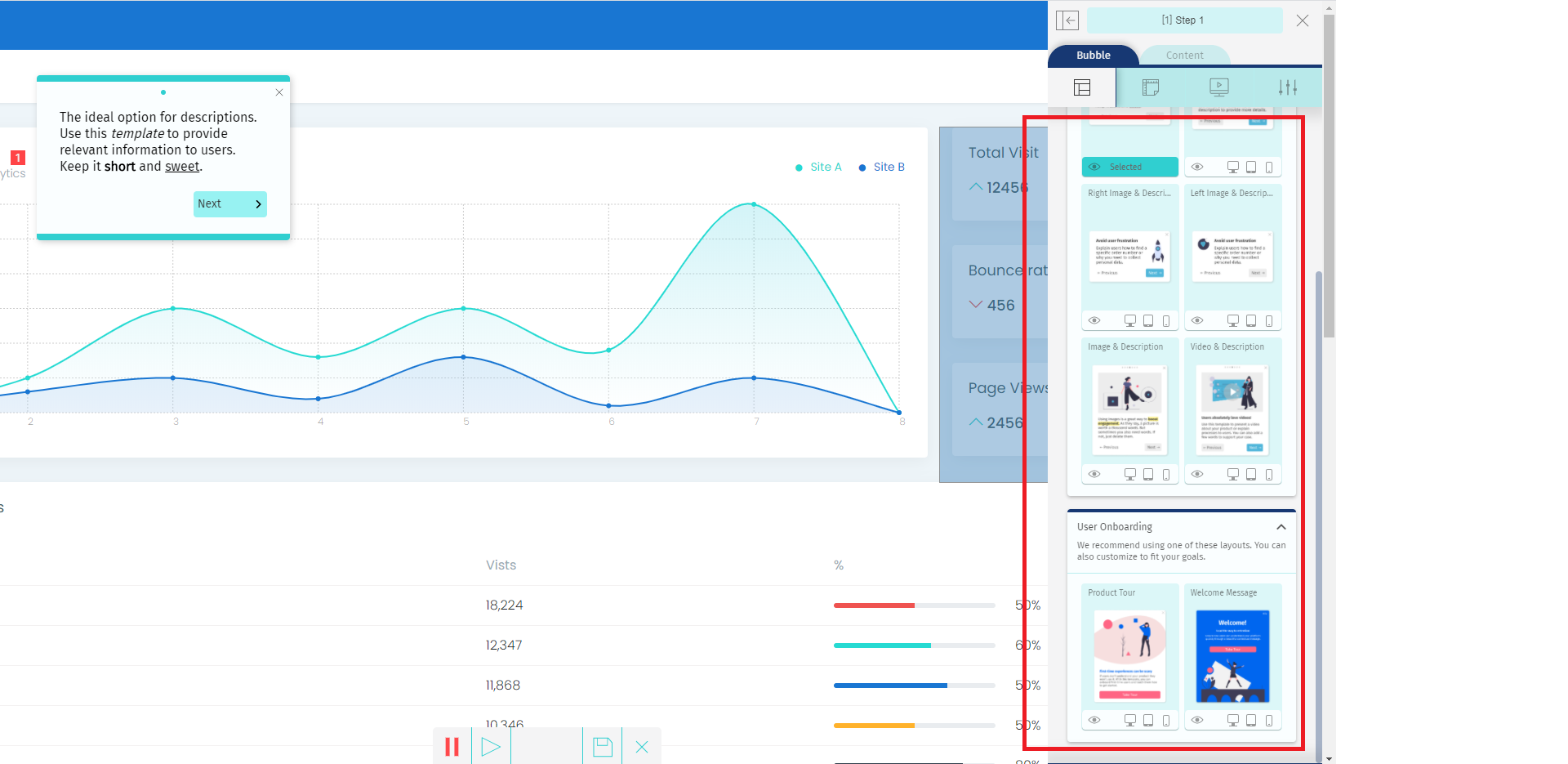
3 - A default message will appear - choose a layout for your popup message by clicking the option "Bubble Layout" located on the side menu;

4 - Once the new layout is selected, click on the third icon located on your sidebar and enable the option "Display as PopUp"
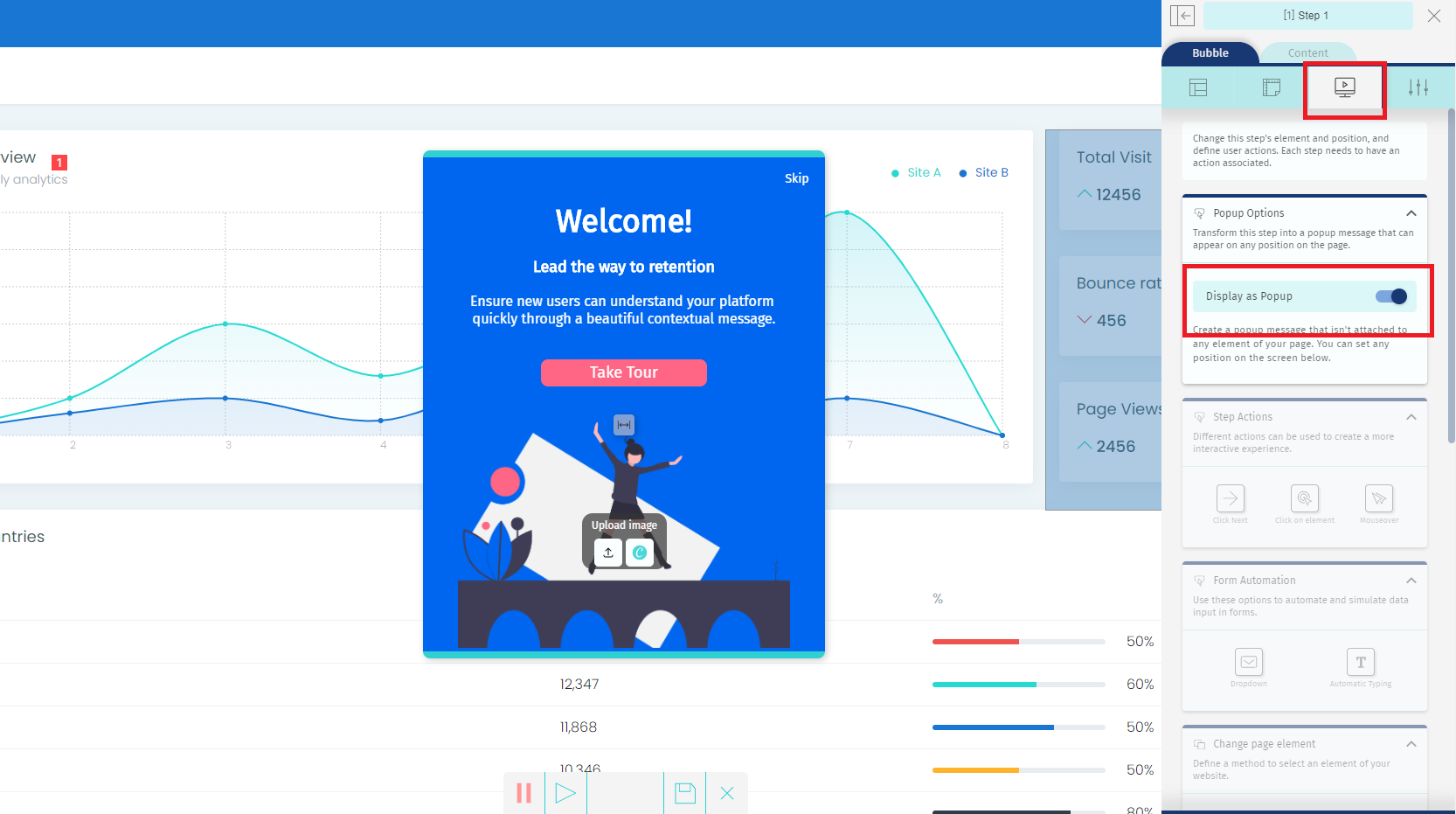
5 - Your message will appear at the center of the screen as default and not attached to the element selected.
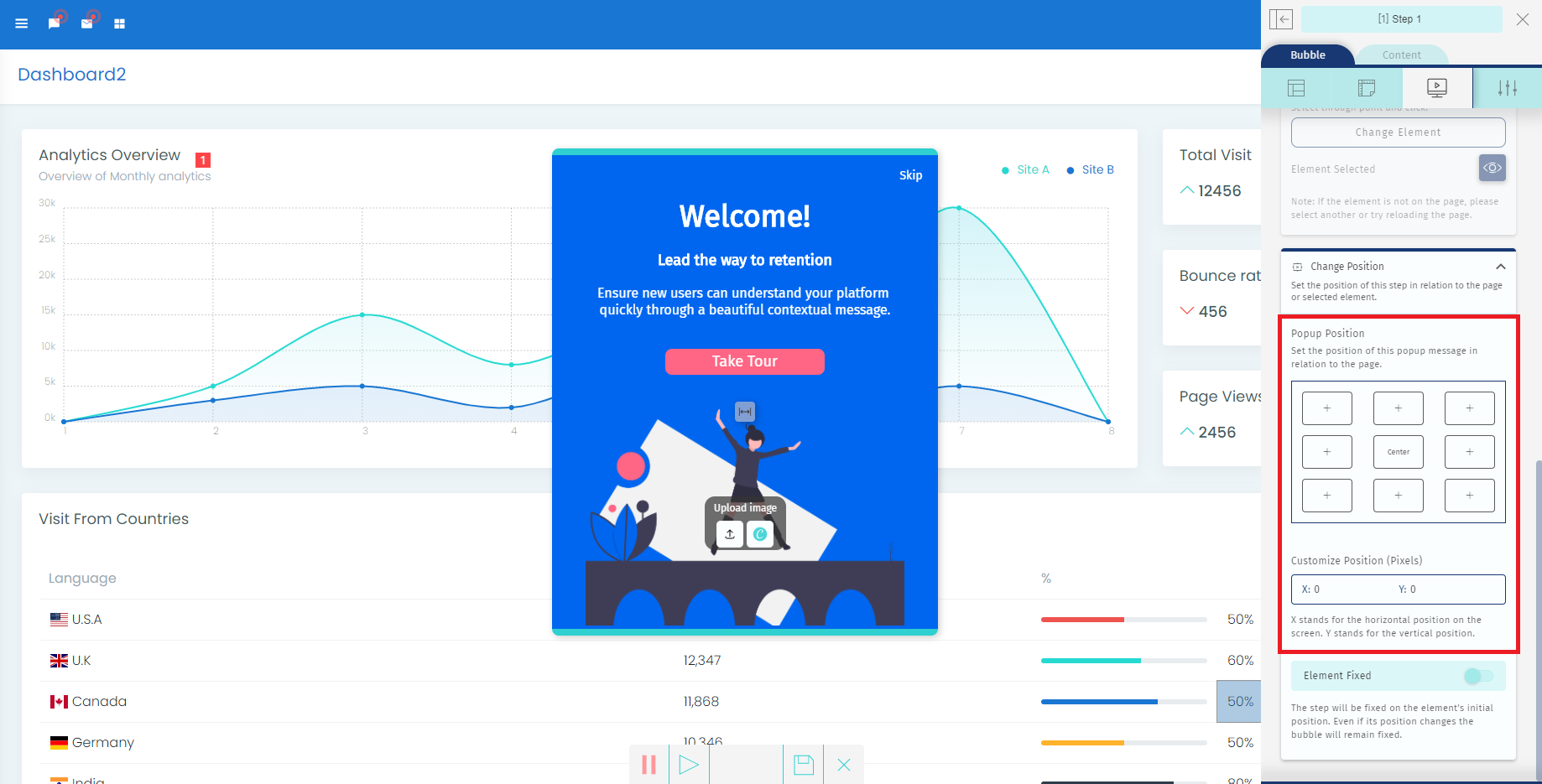
To change the position of your popup scroll down in the sidebar and select a different position just like displayed in the image below.
6 - Make the changes to your popup colors, message, and CTA to fit your goals and click on the icon "Save" located in the bottom bar.
Learn more about customization here.
After customizing your popup message, click on the "Close" icon to leave the recording mode.
Setting your popup to start automatically ⏲️
Now you can set up an autoplay trigger so your popup appears automatically on a specific page or when a user interacts with a specific element of your page.
1 - Access your guide's step list and click on "Start Guide"
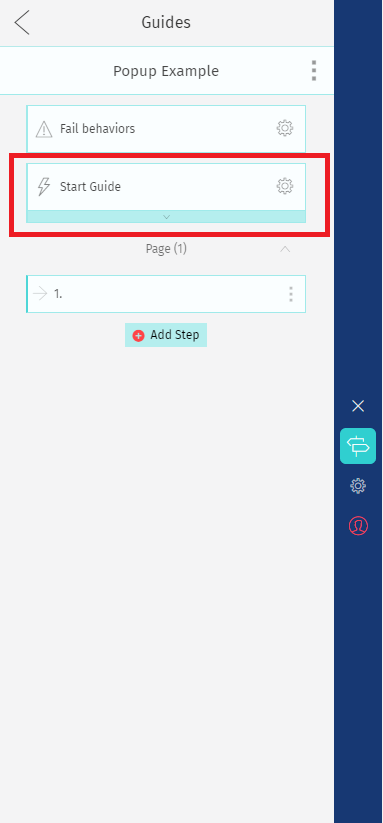
2 - "From guide list" will be your default action.
Click on "Actions Library" to add a new one. There select "Autoplay".
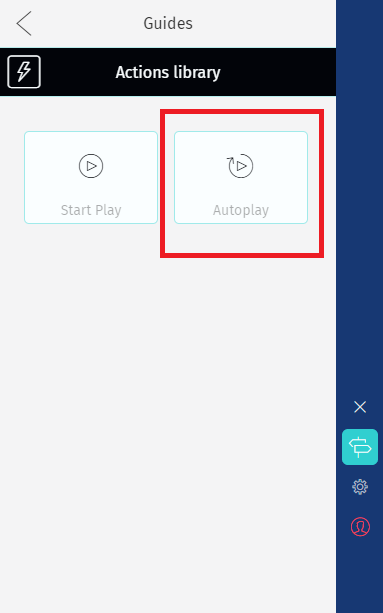
3 - Here you can choose if your popup starts on a specific page or when a user interacts with a specific element of your page.
Click on "Configure and install"
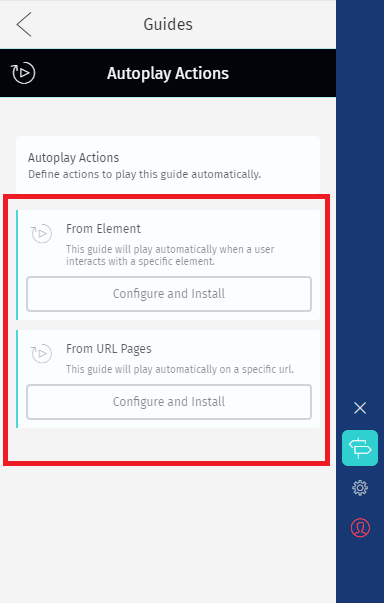
4 - Add the information required. You can also add a timer so the popup appears after some time.

5 - Then, click on Apply Action.
6 - Go back to your Actions list and disable the option "From guide list" so it doesn't appear next to other guides on Helppier tool.
7 - To test your automatic trigger you need to publish your guide, logout from the Helppier tool, and refresh the page on that specific URL you set.
We recommend disabling the bottom bar for end-users to improve the visualization of your popup message.
Comments
0 comments
Please sign in to leave a comment.