Learn how to quickly create a banner for your website using Helppier
1 - Access Helppier's widget on your website and select "New Guide"
2 - Click on "Tours & Popups"
3 - Select an element of your page - a default message will appear
4 - Click on "Bubble Layout" on the left side menu - select a new template if you'd like
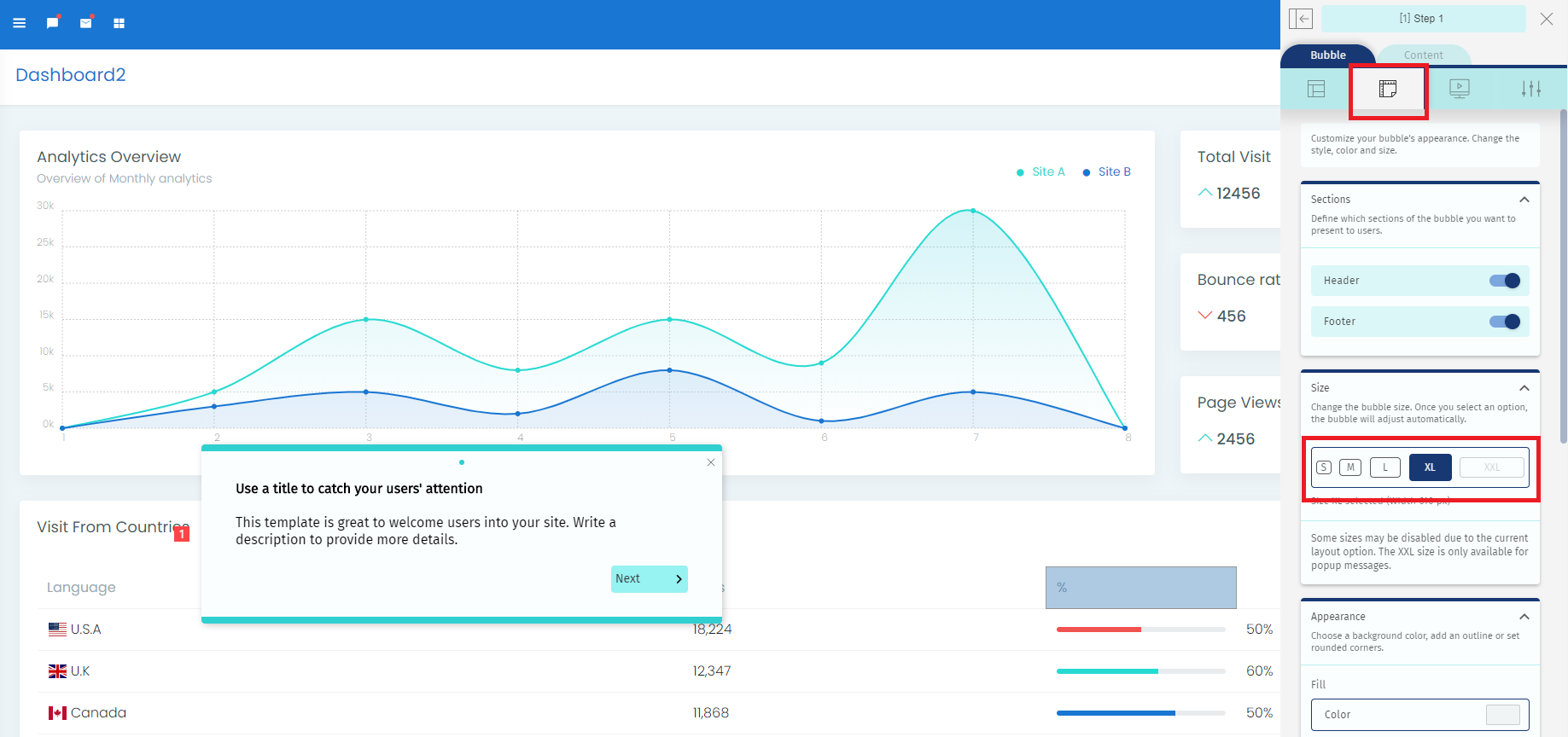
5 - Go to the second option in Helppier's sidebar and select the option "XL"
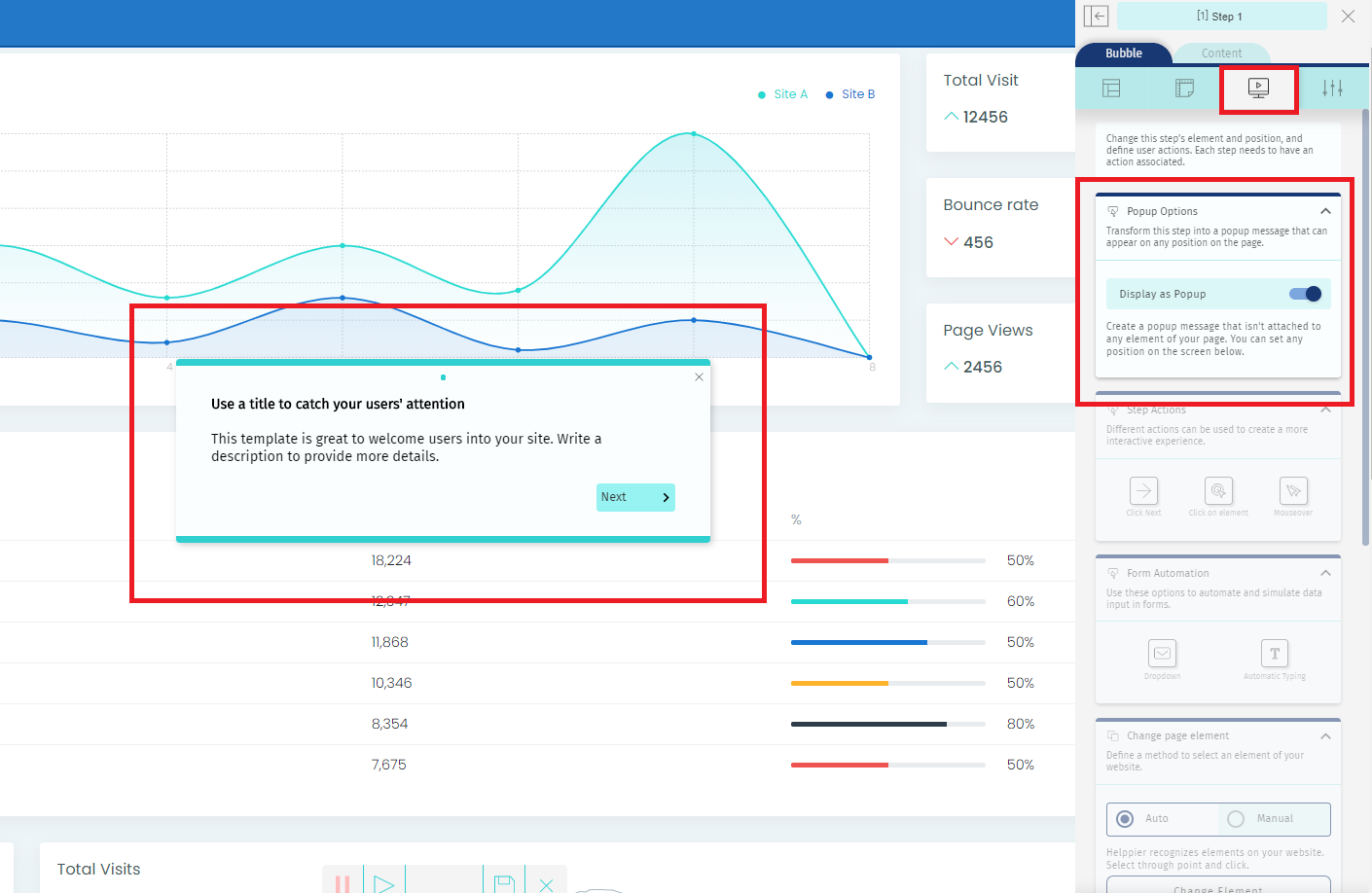
6 - Go to the third option on Helppier's sidebar and select the option "Display as popup"
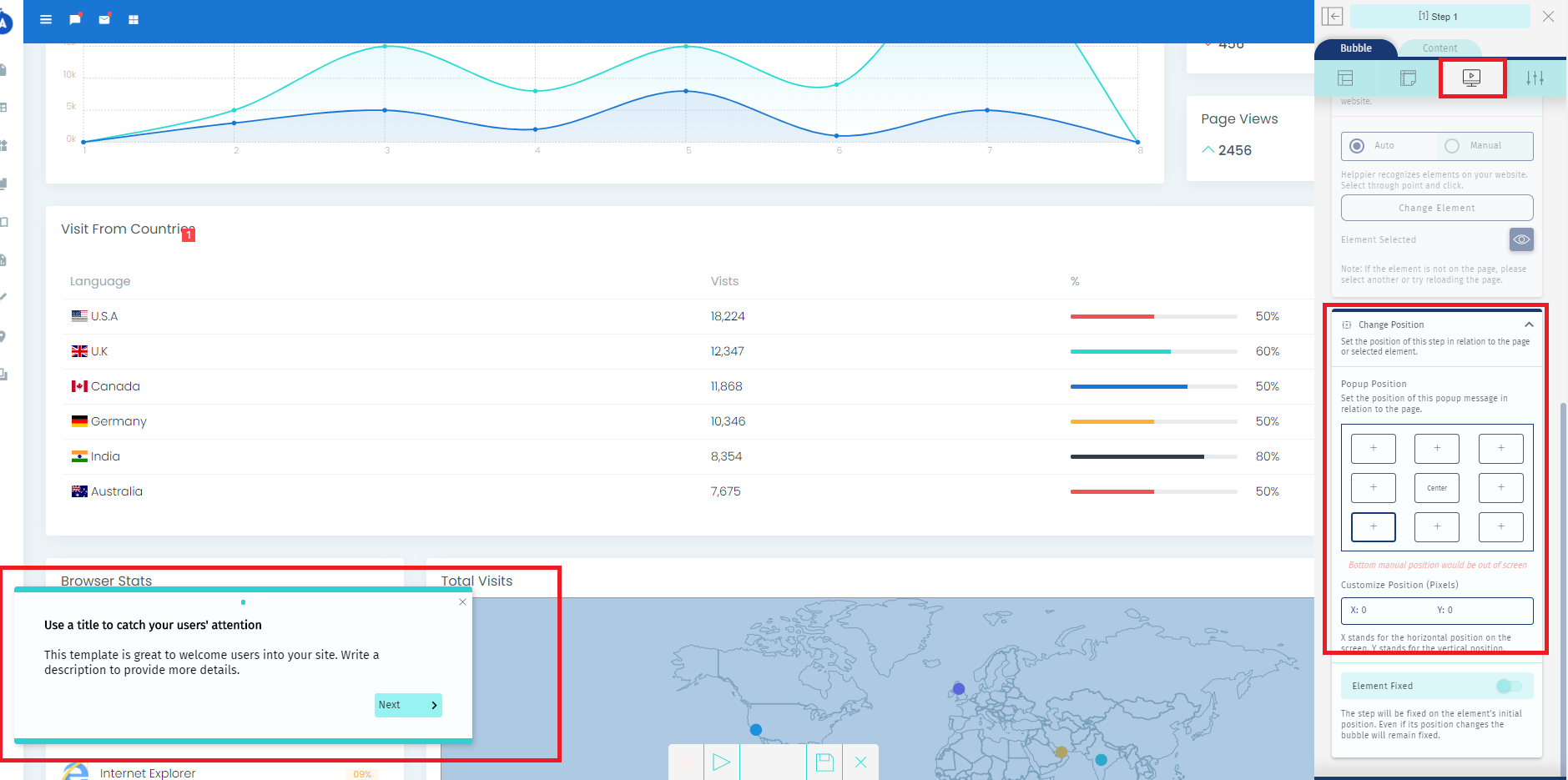
7- To change the position of your banner message go to the third option in the sidebar. Then, scroll down to the area "Change Position"
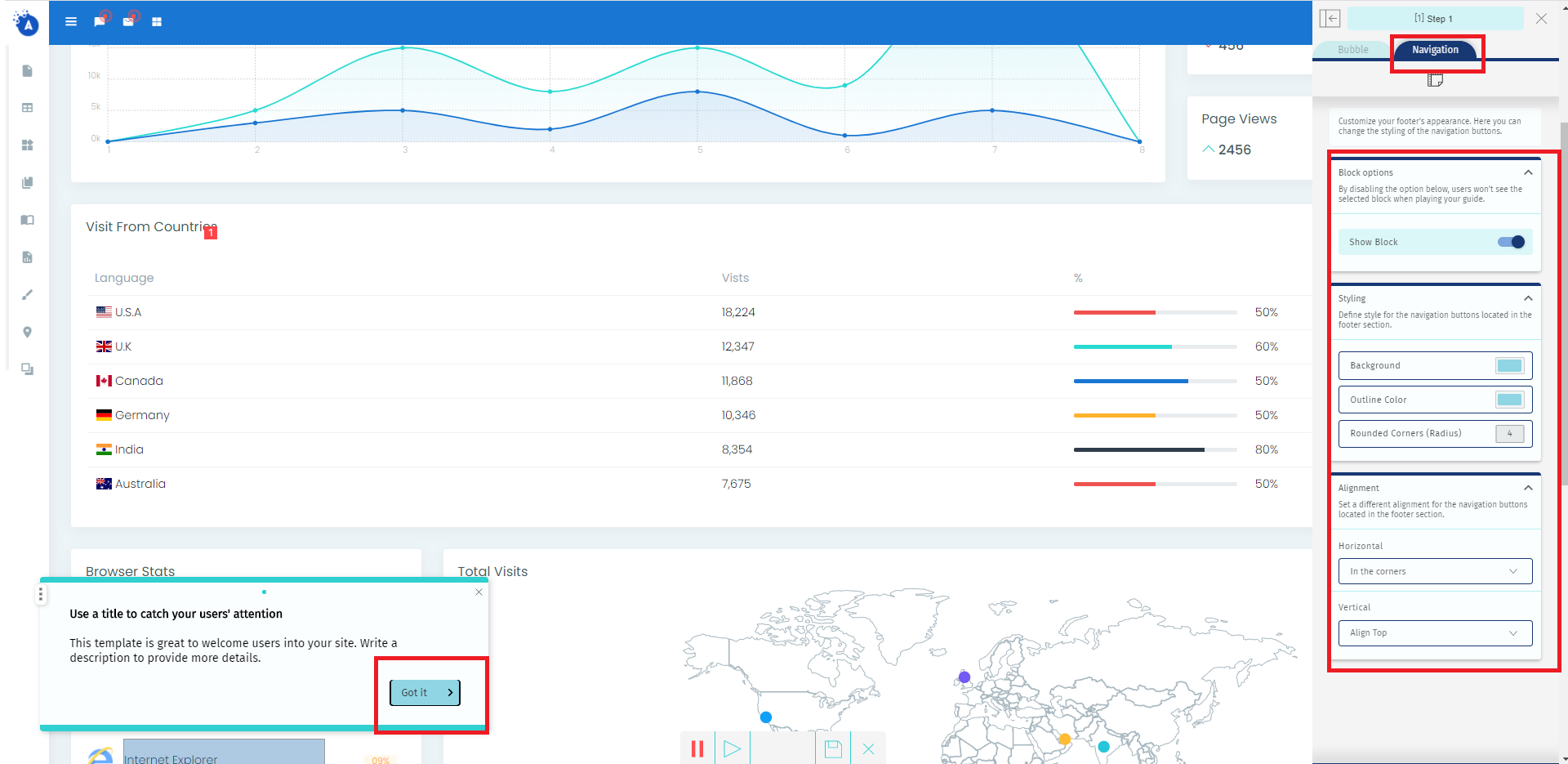
8 - You can change the button text to make sense to your banner. Just select the button block, type your message and customize the colors directly on your sidebar.
Hide the navigation button if you don't add more steps to this guide, by disabling the option "Show Block".
9 - Learn here how to fully customize all the appearance of your message with new colors.
10 - To set up your banner to appear automatically on a specific page please check these instructions.
Comments
0 comments
Please sign in to leave a comment.