With Helppier you can customize all the steps created.
Each step has an Advanced Settings option that allows you to define interaction elements and the overlay opacity. In addition, improve the way Helppier detects elements on the page.
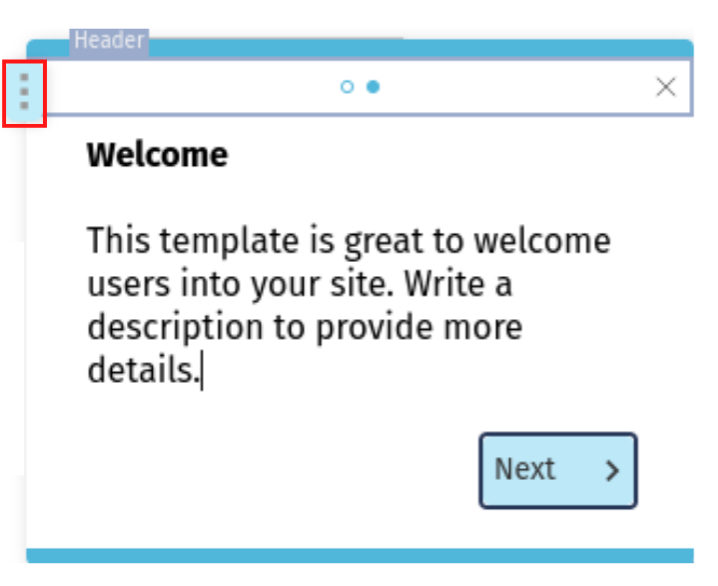
1- When editing/recording a step click on the "settings" icon on the left.
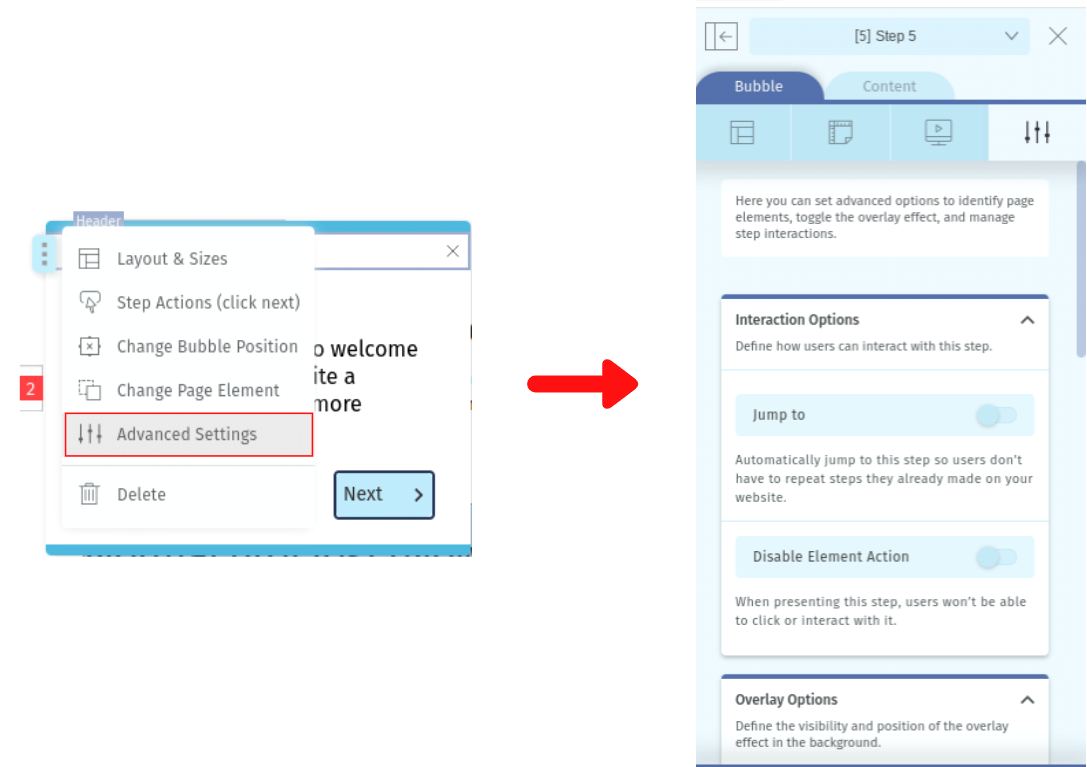
2 - To access your Step Settings, select the 5th Icon of the bubble's menu and a sidebar will appear.
Interaction Options
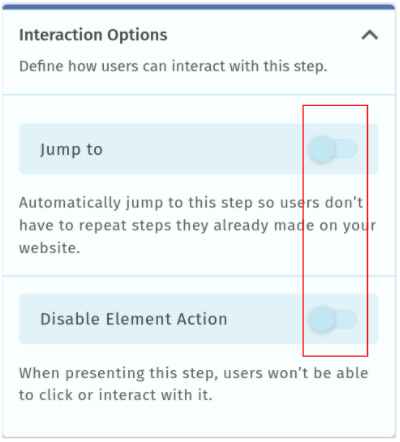
Jump to - Setting a step as a “Jump to”, allows the user to skip tutorial steps as long as the element selected for this step is already visible to the user. This option can only be applied in the first page of a tutorial and, as long as the element is visible, the tutorial will start from that step.
Disable Element Action - Enabling this action prevents the user from interacting directly with the element. This option only takes effect if the overlay is enabled for this tutorial. Disabling the interactions is useful when you wish to inform the user about what is about to happen in the process you are guiding him through, before giving him direct access to the page.
Overlay Options
The overlay option allows darkening the background behind the tutorial to minimize distractions and catch the user's attention. Here you can define the opacity and the position on the page.
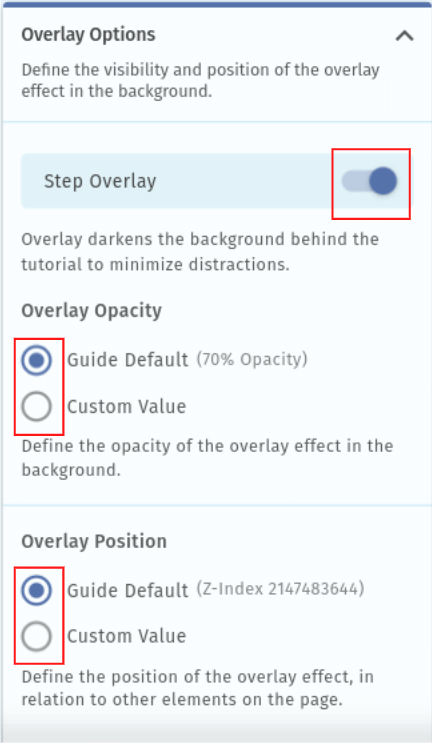
Overlay Opacity - Toggle the overlay visibility: choose between a predefined opacity value (70%) or define a customized value.
Overlay Position - This option allows defining the position of the overlay effect, in relation to other elements on the page.
Developer Options
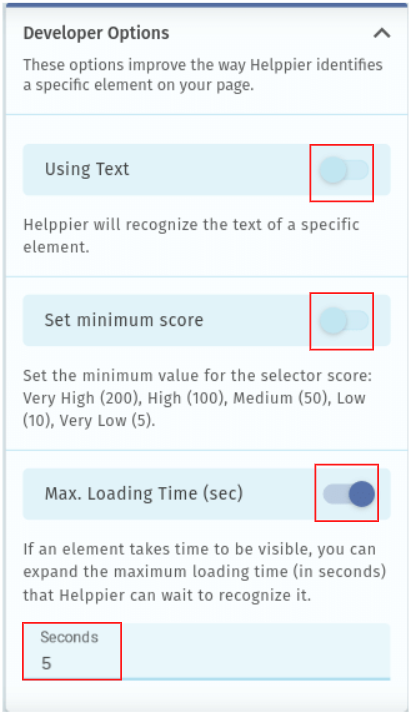
The Developer options help to identify page elements more correctly. Note, we don't recommend setting up any of these advanced options unless you're a developer with technical knowledge.
Using Text: Detecting an element based on its text improves Helppier’s detection algorithm on specific cases. This option is disabled by default due to concerns such as different languages in which the element may be displayed.
Set Minimum Score: You can set the minimum value for the selector score: Very High (200), High (100), Medium (50), Low (10), Very Low (5).
Max Loading Time: By default, Helppier attempts to display a step for a maximum of 5 seconds after which the guide will be stopped. Changing this option allows the admin to specify the amount of time desired for this wait. This option is most useful when a specific process such as displaying a section of the website or even a webpage may take longer than usual.
Comments
0 comments
Please sign in to leave a comment.