By default, Helppier steps are set just highlighting the elements they are attached to.
If you want users to interact with an element and redirect them to another page by clicking a button or a link, while recording the guide you need to change the action for that step on the sidebar to "click".
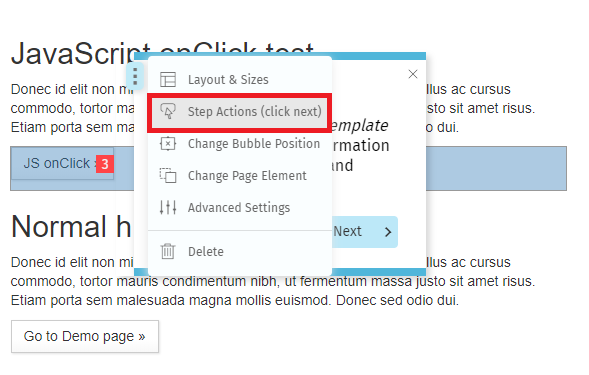
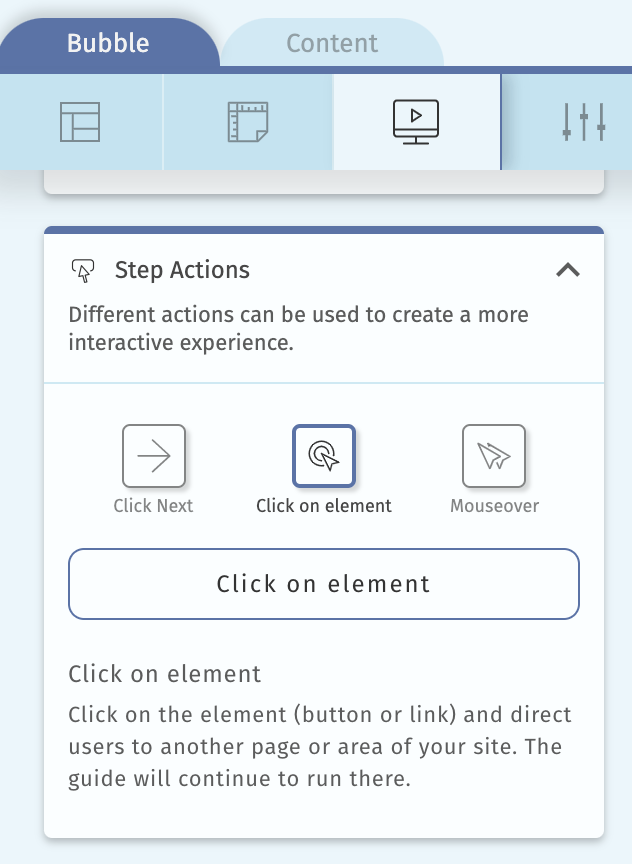
This will make Helppier click that element and move you to the next page where you can continue recording the guide.
After saving the guide you will see that between the step where you set the action and the next step, a second page was added. This is what we call a page transition.
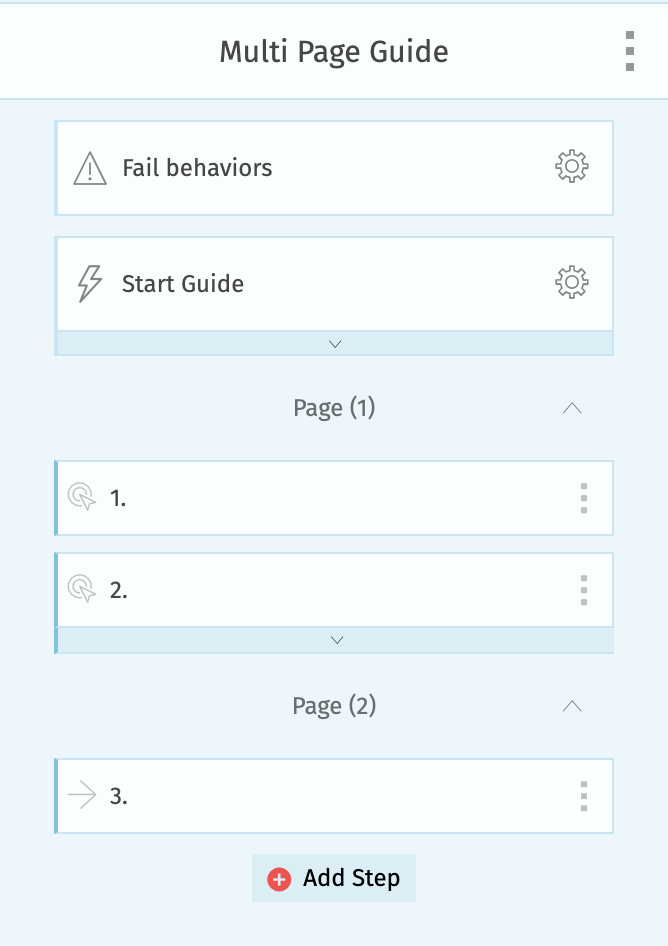
In this way when the user sees the guide, he/she will be able to click on it and Helppier will detect that there is a page change there, and after the page is changed will show the next step.
Note: If you delete this step that does the page transition, you can add the step again in recording, set the action to "click", save and close the recording and then click the right side menu "..." on that step and re-add the page transition.
Comments
0 comments
Please sign in to leave a comment.