You have 3 options to select elements on your website while creating your guides (REC Mode).
Automatic Selection (Point & Click)
The simplest but effective way of selecting elements is to do it automatically. Simply choose an element and click on it to attach steps. 
If you want to optimize the precision with which you select the elements or if an element was identified incorrectly, there’re always 2 other ways to improve selection:
Manual Re-selection (HTML Selector)
Track a web element using HTML selectors. These selectors are used to recognize HTML elements on web pages onto which you want to add a guide step. This option allows a more precise selection of your website's elements.
Note: “Element” is another way of describing an item on your page that you want to change. The “selector” is the code the website uses to describe that element and identify it in the web page code.
1. Mouse over the web page and select the element to create a step.
2. Click on the side menu and select the option "Change page element"
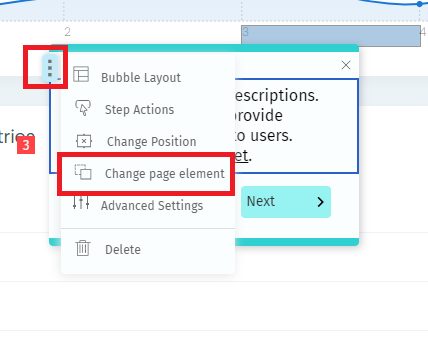
3. On the sidebar choose the option "Manual"
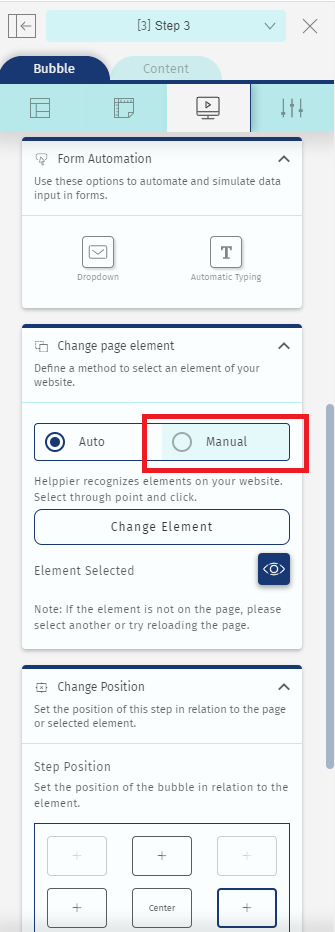
4. Edit the HTML selector.

5. Click on the check icon to finalize the process.
Here are some steps to find the right HTML selector:
- Mouseover the cursor over the element of your website you want to target.
- Right-click on the element, click Inspect, or Inspect Element if you’re using Google Chrome or Firefox. In case you’re using Safari, to enable the Web Inspector you have to go to Preferences, click Advanced, then select Show Develop menu in the menu bar. To examine a specific element you can use the same method as Google Chrome or Firefox.
- Elements panel should be opened by default and the element itself highlights.
- When you see the element area highlighted, click your mouse once to “freeze” the magnifying action, and you will be able to use the mouse freely without losing the selector.
- Click the right mouse button on the Web Inspector and go to copy > Copy Selector.

- Now, open the box Re-Select manually and select all current CSS selectors. Delete it and paste the new element Selector. The step element will change automatically.
Comments
0 comments
Please sign in to leave a comment.