Sometimes, Helppier is not present on the page. This can be caused by several situations, like configurations on Helppier, the use of extensions, website's security.
This article's objective is to help understand why Helppier is not present on the page and how to enable it again.
Check Helppier configurations
- Helppier provides a way to hide that launcher, which is very useful when the administrator whats to use only autoplay guides or for the creation stage. To display the launcher again temporarily you will have to use the keyboard shortcut.
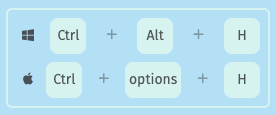
To display it permanently, you will have to log in on Helppier, click on the settings tool, chose the "General settings" option and then "Launcher settings".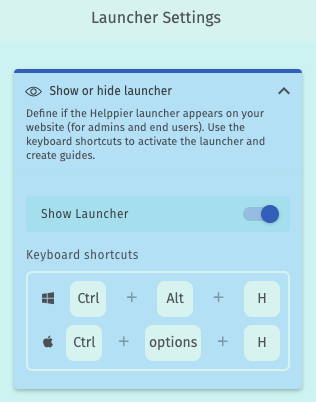
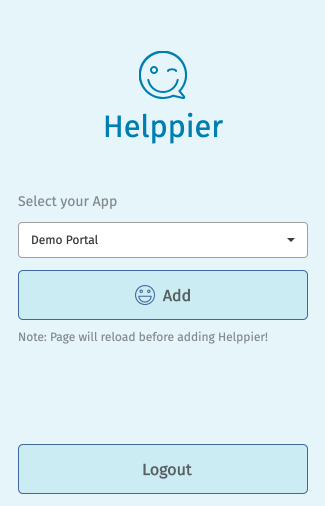
- One of the ways of using Helppier is by using the Google Chrome extension, every time that you close the tab, you will have to add again Helppier on the page.
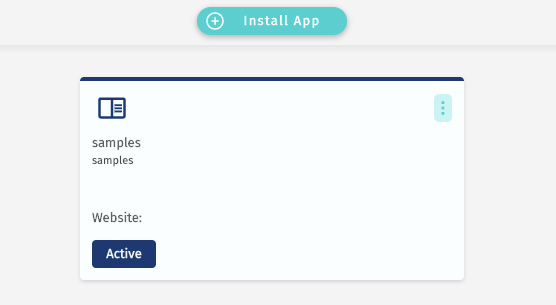
- If you are using Helppier snippet, you have to make sure that your app is still present on the app list, on your Helppier backoffice.
Check Browser and website configurations
- Some third-party extension can block Helppier from loading, these extensions can be related to advertising blockers.
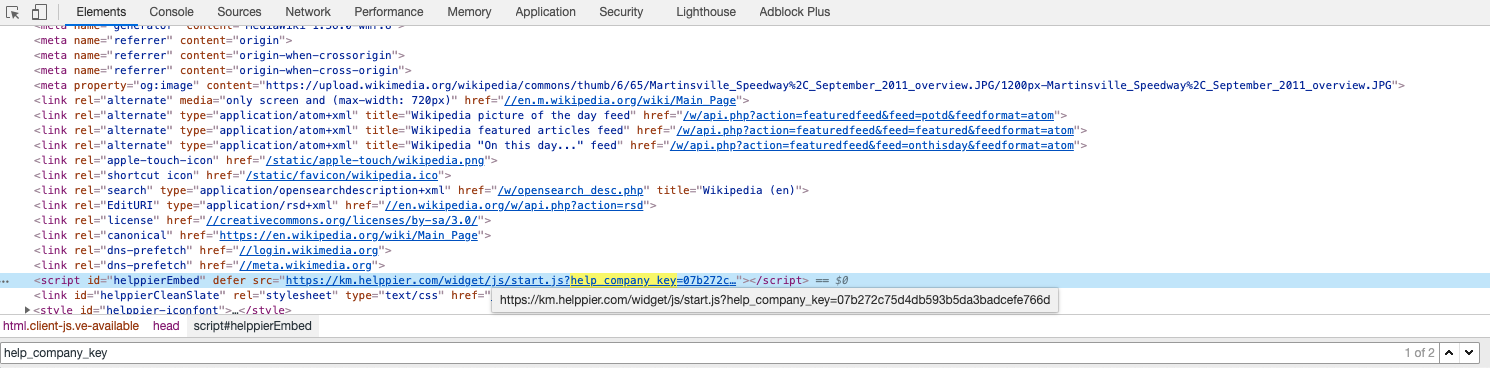
- You can check if Helppier is correctly installed, by opening the Developer Tools on your browser and search for "help_company_key" at the elements tab. If you find this, Helppier is installed on the current page.
- Sometimes, certain Firewall or DNS configurations can block different domains, like helppier.com. In this case, you should check your configurations or DNS provider.
Comments
0 comments
Please sign in to leave a comment.