The step element is not a Click
If you want to redirect users to a different page of your website, one of your steps need to be set with the action "Click". Otherwise, Helppier will not be able to jump to another page.
By default, the step will be set with the "Walkthrough" action which allows the user to go further clicking the "Next Button".
Create a Multipage guide
1 - Select the element of your website which links to the page you want to land.
2 - Click on the bubble menu and select the option "Step Actions"

3 - Access the actions card on your sidebar. And select the second option: "Click".
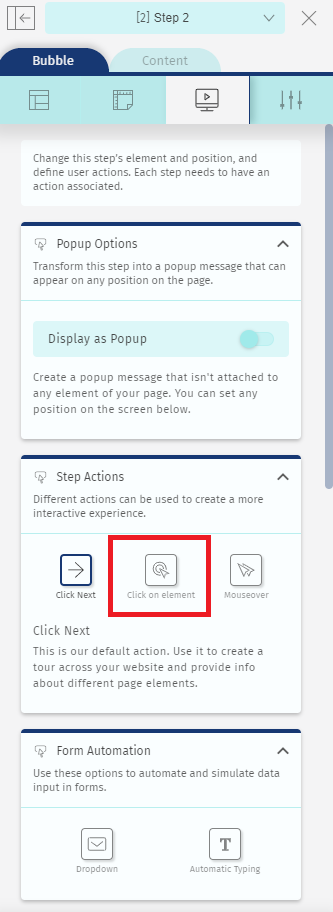
4 - Helppier will implement a click on the link/element you selected. Continue to record further steps on that page. Users will be redirected to that page when clicking the element or the "next" button.
To learn more about Step Actions, please read the article Actions - Step Settings.
The next page’s URL is incorrect
Hidden pages: Does the page exist for all users?
There are many web pages that are invisible to certain users. For instance, web pages protected by a password or that require you to create an account for you to have further access to the whole of the website.
You have then to make sure that the page is accessible to all users and accounts.
Script installed on the jump page?
Helppier might also not be jumping correctly to the next page because the script isn’t installed in the following step’s page. In this case, all you need to do is check if you copied and pasted the script correctly.
Comments
0 comments
Please sign in to leave a comment.