Guide settings: disable the overlay option, choose devices, etc.
1 - First go to your guide's list and click on "Edit"
2 - In your step list access the top menu and click "Edit Guide"
3 - You will access your guide's settings. Use the navigation at the bottom to check all options.
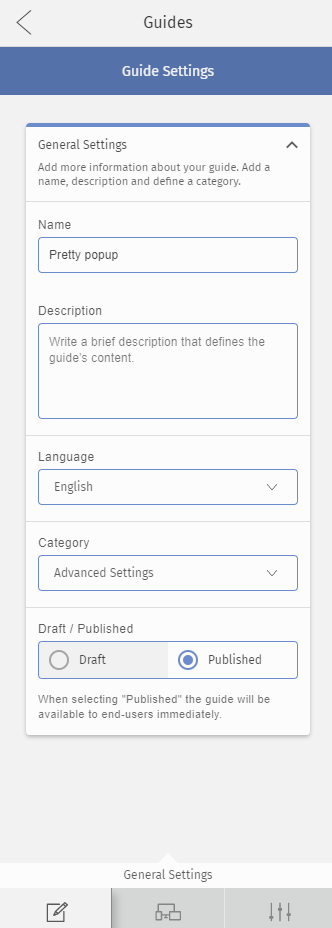
The first tab is General Settings. Here you are able to Publish your guide or set as Draft. You can also edit the name and description of your guide.
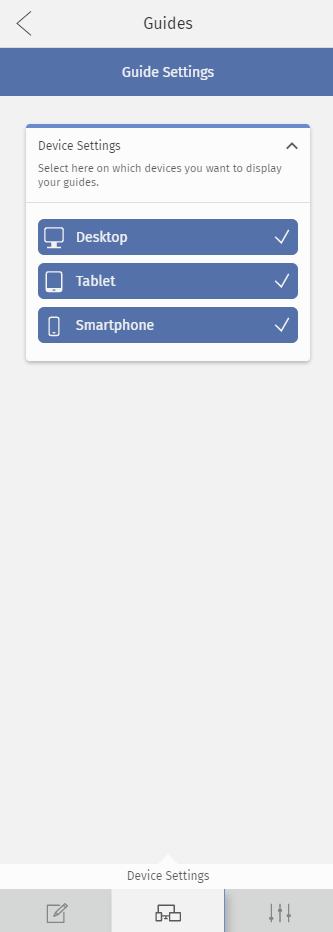
In Device Settings, you can choose which devices you want to show your guides.
Since all websites and platforms are different, Helppier does not always apply responsiveness in the same way. Sometimes we recommend disabling the option for mobile and tablet devices.
Integration Settings allows you to configure and disable several interaction elements of your guide.
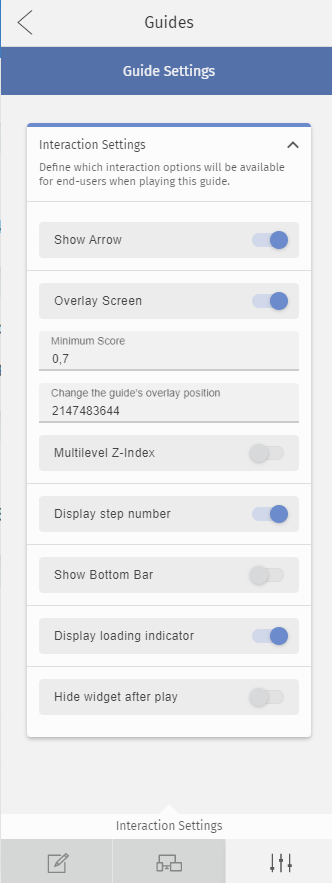
Arrow - By disabling this option you remove the indicator arrow that points to the element that the guide is attached to.
Overlay screen - By disabling this option you remove the dark background effect that appears behind your guide.
Step number - By disabling this option the user won't be able to check which step of your guide he/she is in.
Bottom bar - By disabling this option you improve the visualization of your guide and remove the Helppier bar that appears at the bottom of the page.
Loading indicator - By disabling this option users won't see the loading indicator when playing your guide.
Hide widget after play - After a guide is played, by default the sidebar with your guides list opens. Enable this option to keep it closed while the user interacts with your website.
Comments
0 comments
Article is closed for comments.