To properly understand how guides display and behave, we will detail two distinct concepts that relate to guides and URL’s: visibility and fail behaviors.
Visibility
At a given moment, Helppier’s widget contains a list of guides that have been previously created. Each guide in this guide's list can be clicked by the user, which leads the guide to start playing.
While you can have all guides visible in the guides list throughout all your website’s pages (this is the default setting), you may want to only show a certain guide in the guide’s list on a certain webpage.
Example: You have created a total of 50 guides but, on your website’s “Contact” page, you only want to display a list of 5 guides that relate to information on that specific page.
You can easily configure each guide to show in the guides list for specific URLs (pages). To do that:
1. Open the Helppier widget.
2. Go to the Guides list.
2. Go to the Guides list.
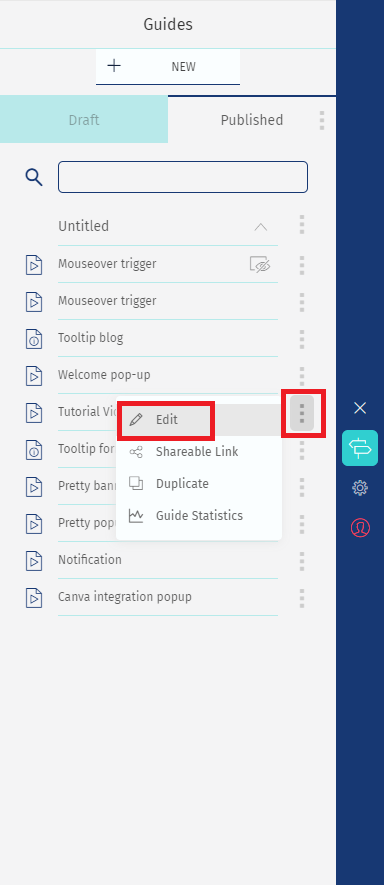
3. Click the “Edit guide” icon on the right of the guide you want to configure.
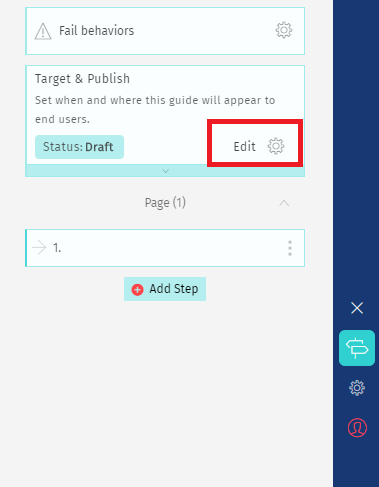
4. On your step list, click on the icon near "Target & Publish"
5. On this screen, you can see your start guide actions. It can be a "From guides list" or "Autoplay".
Click on "Edit action".

6. Select the option "Specific URL"
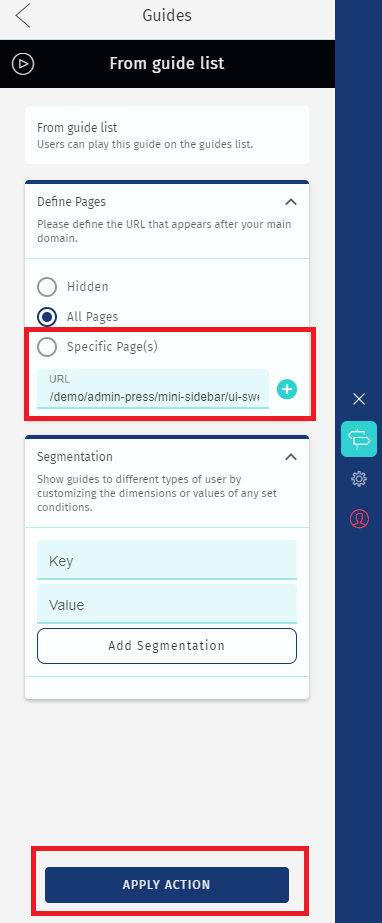
In this panel, you can quickly set up if the guide should be hidden (not being listed on any page), visible on all pages, or visible only on a specific page. By selecting the last option, you can then specify the URLs where the guide should exclusively be listed.
Example: “/contact.html” would configure the guide to be listed exclusively in "yourwebsite.com/contact.html”.
Fail Behaviors
This parameter enables you to set up how a guide should behave if it fails to start.
Example: In your “Contact” page, your guides list contains a “Welcome” guide that is only playable in your Homepage - as it relates to that page’s specific elements.
If your visibility settings enable that “Welcome” guide to be listed in the “Contact” page, a user can attempt to play it - which will result in a fail behavior.
Then, by setting up custom fail behaviors, you can choose what should happen when that fail behavior is detected.
Here’s how you can configure fail behaviors:
Example: In your “Contact” page, your guides list contains a “Welcome” guide that is only playable in your Homepage - as it relates to that page’s specific elements.
If your visibility settings enable that “Welcome” guide to be listed in the “Contact” page, a user can attempt to play it - which will result in a fail behavior.
Then, by setting up custom fail behaviors, you can choose what should happen when that fail behavior is detected.
Here’s how you can configure fail behaviors:
1. Open the Helppier widget.
2. Go to the guides panel.
3. Click the “edit guide” icon on the right of the guide you want to configure.
4. Click the “fail behaviors” icon, just above the steps list.
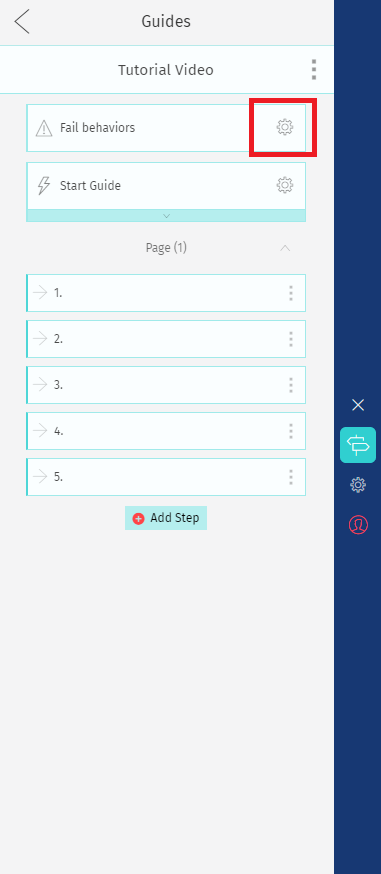
5. Choose an action to be taken when the guide fails to start.
To ensure your guide is played correctly only on a specific page we recommend enabling the option "Redirect to start page" and then specify the URL.
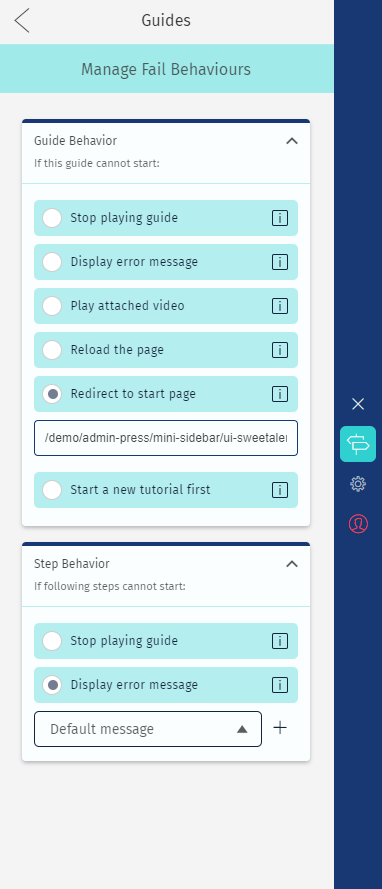
Fail Behaviour options:
Stop playing the guide - the default setting. If a guide fails to start, it is immediately stopped.
Display an error message - you can show a custom error message to your users. Learn more here.
Reload the web page - the current page is reloaded in an attempt to restart the guide.
Redirect the user to a start page - the user is automatically redirected to a certain page. In the example above, trying to play the “Welcome” guide would fail, and could redirect the user to your homepage, where the guide would play flawlessly.
Start a new tutorial first - the user is automatically taken into another tutorial. This is useful if you wish that the user goes through a specific guide before starting the guide that produced the fail behavior.
Display an error message - you can show a custom error message to your users. Learn more here.
Reload the web page - the current page is reloaded in an attempt to restart the guide.
Redirect the user to a start page - the user is automatically redirected to a certain page. In the example above, trying to play the “Welcome” guide would fail, and could redirect the user to your homepage, where the guide would play flawlessly.
Start a new tutorial first - the user is automatically taken into another tutorial. This is useful if you wish that the user goes through a specific guide before starting the guide that produced the fail behavior.
Comments
0 comments
Please sign in to leave a comment.