Guide Settings
Set the guide as Published
When you create a guide you can publish it or set it as a draft. If you set your guide as a draft, it will not appear to your end-users on their guides' list.
1 - Login into your widget and go to the Guides tool. Select the edit icon of the guide that you can't play.
2 - Click the settings icon
3 - Click the PUBLISHED icon to make the guide visible to end users. 
Read here our Desk.com article regarding “How to create your first guide”.
----------------------------------------------------
Guide Hidden
Helppier allows hiding your guides so that they will not appear to your users on the guides' list.
1 - Login into your widget and go to the Guides tool. Select the edit icon of the guide that you can't play.
2 - Click the settings icon.
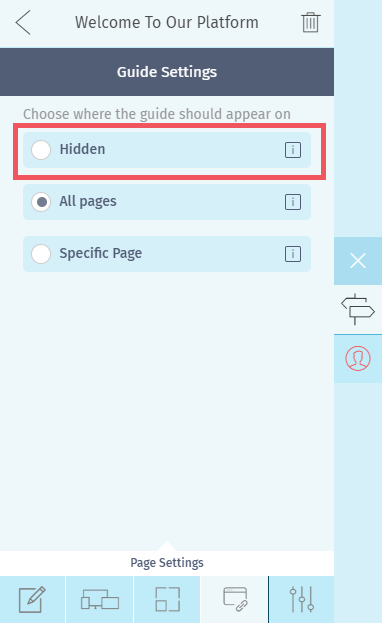
3 - Click the page settings icon located on the lower menu.
4 - Three options will be available. Check if the guide is hidden for your users. If it is, select one of the others.
-----------------------------------------------------------------
Verify Guide Start Page
Are you playing the guide on the right page? If you are on a certain page but the guide starts on a different one, you need to redirect users to that specific start page.
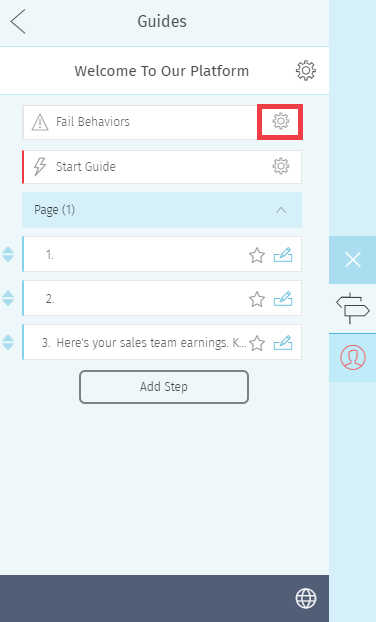
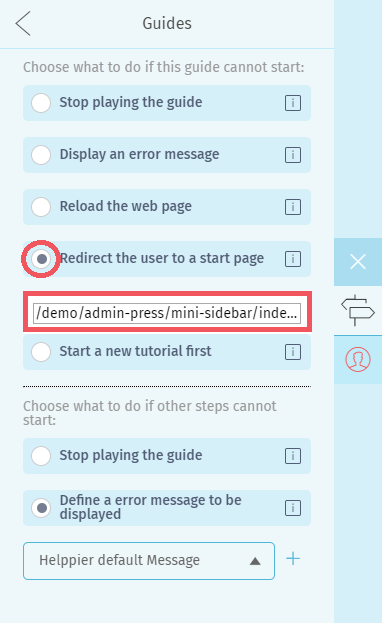
Go to your Fail Behaviors options on Guide Settings, and select the option "Redirect to a start page".
Consider either changing the visibility of the guide on the Guide’s List to the pages where the element in the first step belongs.
This means that the guide will only be displayed to your user if he is on the specified page. You can define a different webpage to display your guide in the page settings menu, as displayed above. Read here our article regarding Visibility.
Verify if the element in the first step exists in all pages and for all users
Check if the element in the first step exists in all pages. If not, you have two options, using Helppier Fail Behaviors. Read this article here regarding fail behaviors.
- Create another guide to send users to the page where the first guide starts
- Redirect the user to a start page - see on previous images.
Comments
0 comments
Please sign in to leave a comment.