In this article we help you set up your guide correctly and test it before showing to your users.
We always recommend using our private Chrome Extension to create the guides on your website and then move forward with the Snippet code installation to publish to users.
1 - After recording and saving your guide click on the Play button located in the bottom bar to preview all the steps.
Make sure you're in the first page where the first step was added.

Things to consider when testing your guide:
- Is my guide working well on mobile devices? - try reducing the window size to test the responsiveness;
- If you're using the overlay effect - is it applying correctly and highlighting the element?
- If you're using Click actions - is it moving the user to the correct page?
2 - After previewing your guide, click "Save" and "Close" the recording mode.
To ensure users play your guide on the correct page, access "Fail behaviors" and check if the option "Redirect to start page" is enabled with the correct url.
More info on fail behaviors here.
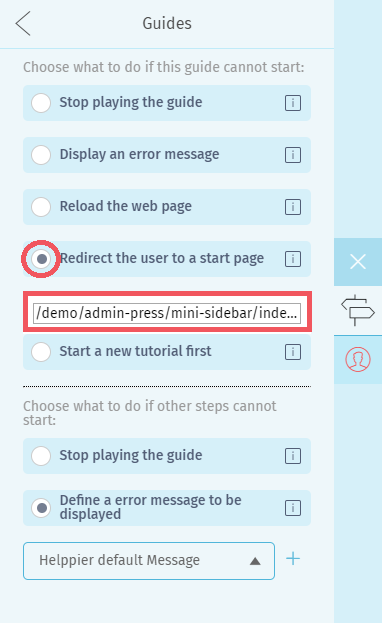
3 - After that, check your "Start guide" list and see if the start action that you want to apply is properly setup.
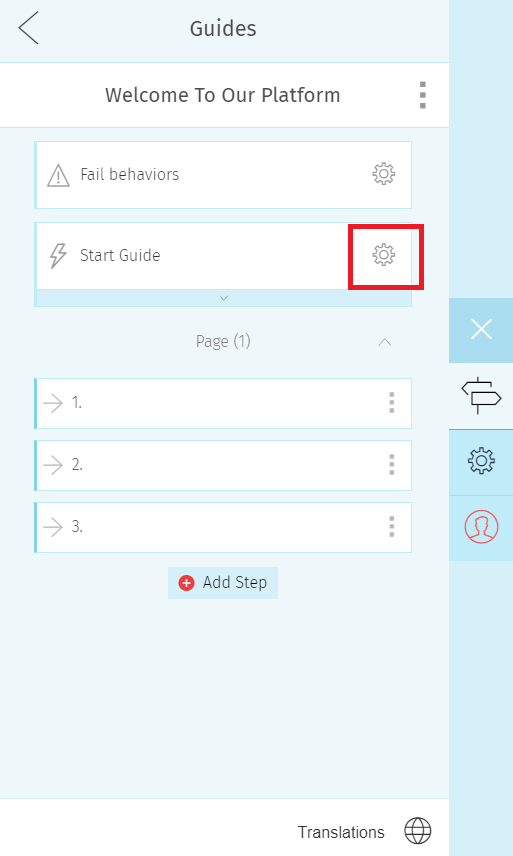
3.1 - If you want users to play the guide from Helppier's list on the widget enable the option "Start from guides list"
3.2 - If you want the guide to start automatically for users on a specific page add the option "Start from URL" and specifify the URL - it should be the first page where the first step was created.
3.3 - If you want your guide to start automatically when users click or mousehover a specific element of your page add the option "Start from element" and choose an element from the first page where you recorded your guide's first step.
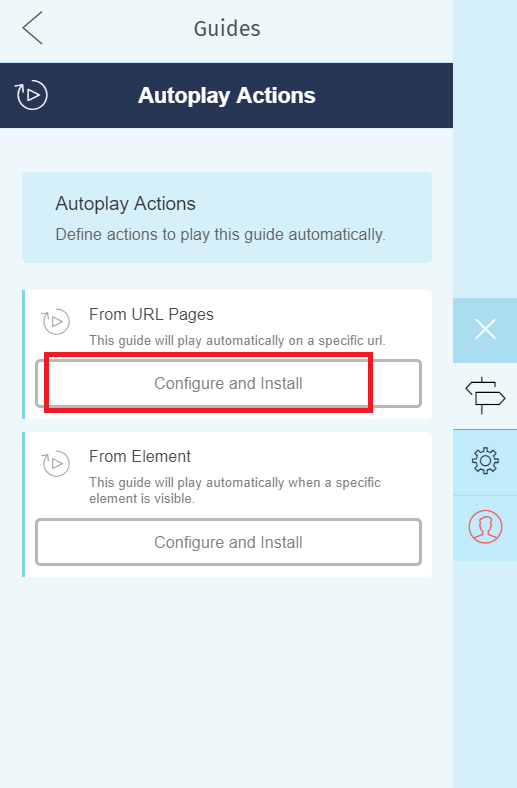
Make sure to disable the actions that you don't want to apply to your guide. For example if its an automated message - disable the option "Start from guides list"
More info on Start guide here.
To test your automated guide make sure its published and that you logout from Helppier and refresh the specific page of that guide.
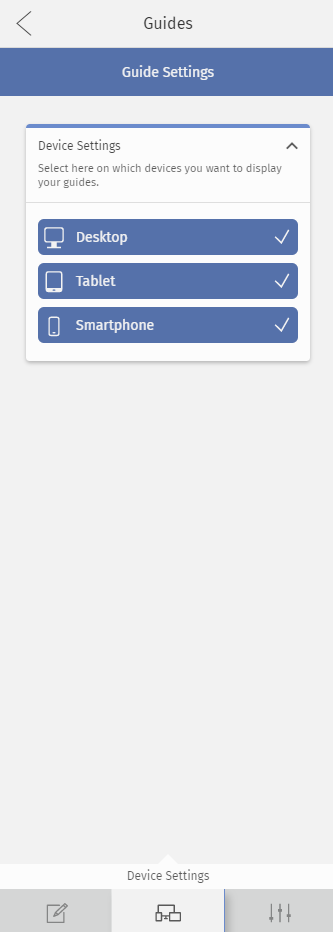
4 - If your guide, for some reason, isn't displaying properly on your mobile website or platform - you can always disable mobile and tablet devices on your guide's settings.
Here are some reasons this can happen:
- The elements of the page in mobile devices might not be the same;
- Your page structure is different for mobile devices having conflict with the web version;
- Some elements of your guide don't appear in your mobile page version;
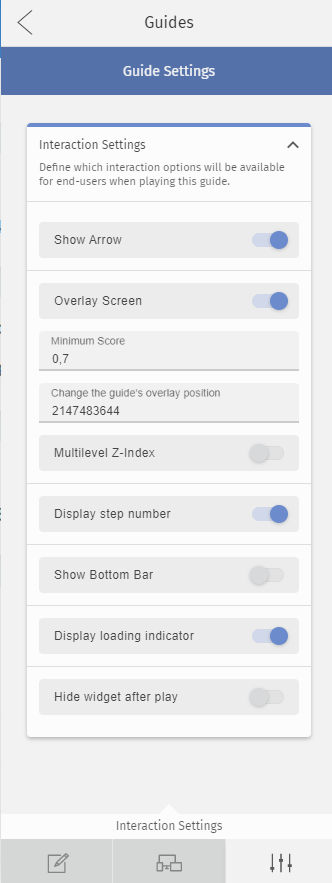
5 - If the overlay effect is not highlighting the element properly you can disable the option "Overlay Screen" on your guide's settings.
Here are some scenarios that you also should test:
1. Test as a new user - Signup to your own product and go to the page where your guide is published.
2. Test with different account permissions - Your guide should work for all types of users in your account (admin, editor, etc).
3. Test if your guide works correctly without product content - You should also test empty states on your website or product, your guide should be able to work with our without product content.
If all these points have been checked, you can share your guide to users right away.
Comments
0 comments
Please sign in to leave a comment.